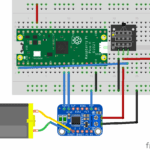
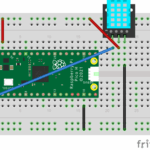
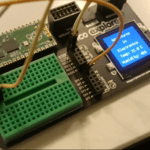
Adventures with Electronics is a father and son project to learn how to connect up and code 37 different electronic sensors using a Raspberry Pi Pico.
Kit:
Prices and links are indicative: other suppliers may have better deals. No affiliate links.
37 Sensor Kit from Elgoo: It looks like the version I have isn’t for sale any more. The ‘upgraded version’ available on amazon has slightly different sensors. This looks the same as the version I have just in a different box or bag
Example code in circuitpython and micropython. The videos show the circuitpython code which uses the screen on the pico explorer board but the micropython code will work if you just have a raspberry pi pico without the pico explorer board
This post talks you through how to set up the hardware, software and firmware needed to kickstart your adventure in electronics: you’ll need to do this before you start writing any python code.
Adventures with Electronics is a father and son project to learn how to connect up and code 37 different electronic sensors using a Raspberry Pi Pico.
This post walks you through the hardware, software and firmware you need to get started writing code on a raspberry pi pico using CircuitPython.
Hardware, software and firmware
These tutorials use a Raspberry Pi Pico as a microcontroller: it’s a cheap, tiny programmable computer that’s a ideal for people who’ve never done any electronics or coding before (and for those of you with more experience too)
Hardware
The physical parts of a computer system that you touch. e.g. a sensor or microcontroller
The only hardware you really need to get started is a Raspberry Pi Pico and a micro USB cable. I’m going to use the original version of a pico without WiFi but any other version will work too. The more fun parts of the project will require a Pico Explorer board and pack of sensors. This post has more information with links to the hardware used in the Adventures in Electronics tutorials.
Adventures in Electronics
Software
The code that runs on the hardware. e.g. python that you write for your pico and also the apps you run on your laptop / desktop
I’m going to use Thonny to write python code on a windows laptop which will then run on the Raspberry Pi Pico. You can use any other IDE on any type of computer. Other good options are Mu or the PlatformIO plugin for Visual Studio Code but I’m not going to cover those here.
The screenshot above shows an example of using Thonny to write, run and edit python code that will run on a Raspberry Pi Pico
Firmware
The low level code that tells a microcontroller how to run your software on a microcontroller
A microcontroller like the raspberry pi pico can only understand binary instructions with 0s and 1s: it can only understand python code if it is given the binary instructions to do so. Firmware is the binary code which tells the pico how to understand and run your code.
There are two types of python code that can run on a pico: CircuitPython and MicroPython. Annoyingly, both are slightly different, they both have their own strengths and weaknesses and both require separate firmware in order to run, but you can change between them whenever you want by ‘flashing’ the firmware.
For the Adventures in Electronics series I’ll create and share code in both MicroPython and CircuitPython. The MicroPython code will be as simple as possible to make each sensor work that will run just on a pico without needing the Pico Explorer Board. The CircuitPython code will use the Pico Explorer board and occasionally some additional components to do more fun stuff.
You’ll need to flash the firmware to install CircuitPython before you can run any python code on your Raspberry Pi Pico.
Flashing the firmware
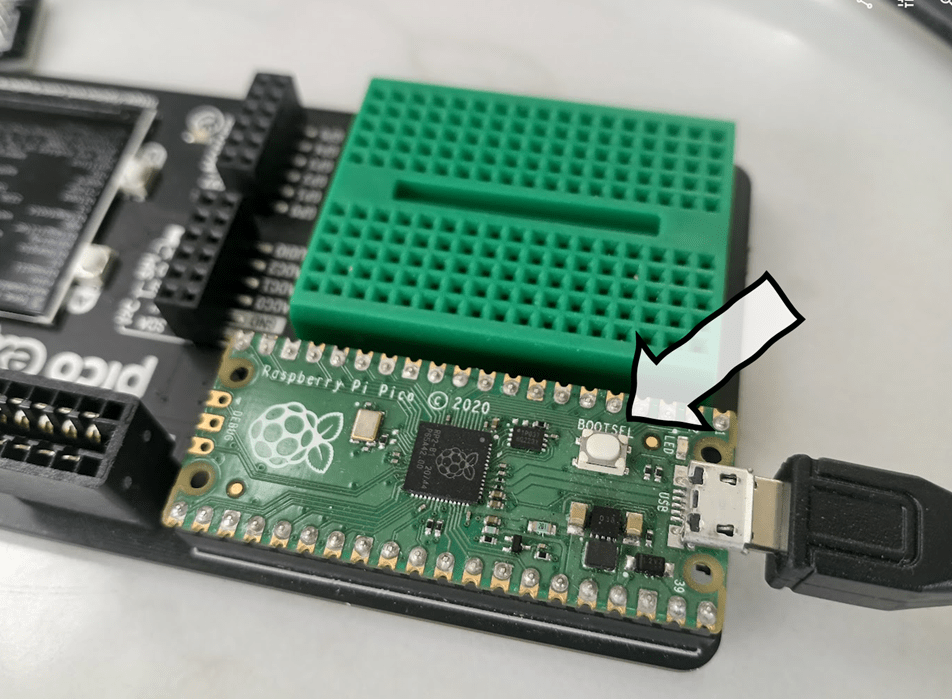
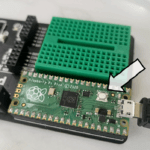
Make sure your raspberry pi pico is not plugged in to your computer. Hold down the BOOTSEL button on the pico as shown below, then plug in the pico into your computer.
I find it easier to leave the micro USB connector plugged in to the Pico and to disconnect / connect the larger USB A connector from the desktop / laptop. Be careful plugging in and unplugging the micro USB connector: they’re not very sturdy.
You should see your computer detect the pico as a USB storage device. If you don’t, you might be using a power only USB cable: try a different one until your computer detects a drive called RPI-RP2
Once the uf2 file has copied successfully, the RPI-RP2 drive will disappear and the pico will reboot. You’re now ready to write code on your pico.
Note: I’ve also put a copy of the micropython UF2 firmware here if you want to try that instead. The process is the same: hold down the BOOTSEL button, plug in the Pico and copy the UF2 file to flash the firmware.
Writing and running Python
If you’ve ever written any python on a laptop or desktop before, you tend to write code on your computer and see it run on the same computer. For Adventures in Electronics, we want your code to run on the Raspberry Pi Pico itself: it should be able to run when disconnected from your laptop or desktop (e.g. powered by a battery in a satellite in space or in a box in the garden).
You still need a laptop or desktop to write the code and put it onto the pico, so that you can use the keyboard, mouse and screen to edit it and debug, but once you press run, your code will be copied onto the pico rather than running on your desktop / laptop.
When you install Thonny it’ll be set up to run python code on your computer: you’ll need to change it to use a different interpreter so that your code will run on the pico instead:
Open Thonny then click on the bottom right where it says Thonny's Python:
You should see an option for CircuitPython. It might be a different COM port to the one shown below – that’s fine. Click on the CircuitPython interpreter as shown below:
If it works, you should see a REPL in the shell window of Thonny that looks like this:
REPL: Read Evaluate Print Loop
A REPL lets you run code one line at a time in python.
Thonny will connect to CircuitPython on the pico and enter a REPL so that you can control it from your laptop / desktop
Copy and paste this code into the code editor window in Thonny then press the red run button
import board
import digitalio
import time
led = digitalio.DigitalInOut(board.LED)
led.direction = digitalio.Direction.OUTPUT
while True:
led.value = True
time.sleep(1)
led.value = False
time.sleep(1)Code language:JavaScript(javascript)
You should see the LED on the pico flash on and off every second
You’re now ready to plug in some sensors and get started with Adventures In Electronics!
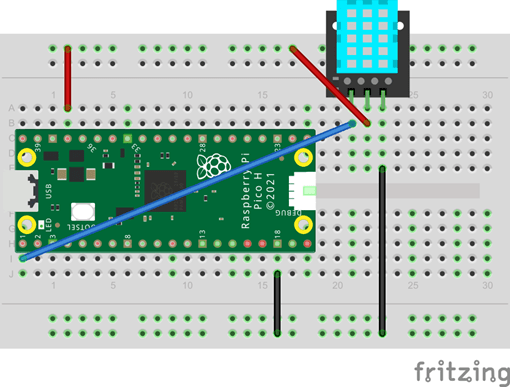
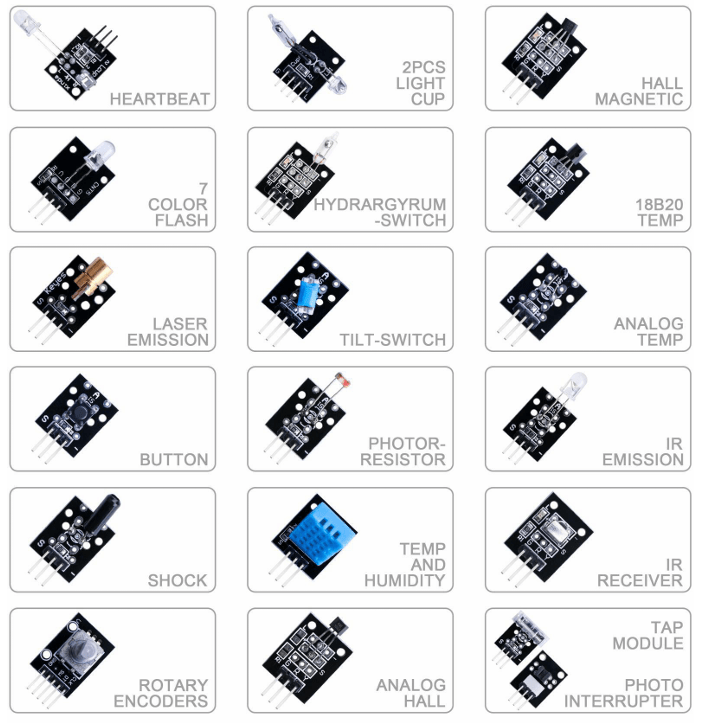
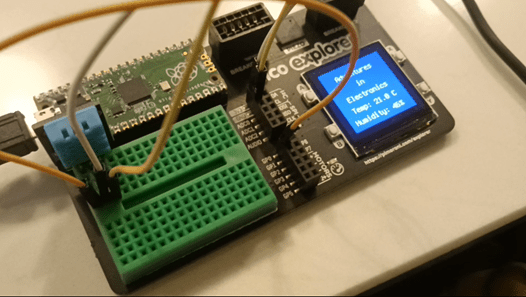
The DHT11 sensor itself has 4 pins and needs a resistor to be connected before it can be used. The version I have comes on a breakout board which already has this resistor and only has three connectors.
Pinnumber
Name
Description
1
S
Signal pin for reading values
2
VDD
Power supply (3.3v or 5v)
3
GND
Ground (0v)
The circuit
The code
"""
Adventures in Electronics
* Firmware:
- CircuitPython v9.2.1
* Hardware:
- Raspberry pi pico in pico explorer board
- DHT11 temperature and humidity sensor
Pin1 (S => GP0)
Pin2 (VDD => 3v3)
Pin3 (GND => GND)
* Description:
Reads temperature ('C) and humidity (%) every second and
displays readings on screen
"""
import picoexplorer
import adafruit_dht
import board
import time
dhtDevice = adafruit_dht.DHT11(board.GP0)
picoexplorer.init()
whileTrue:
# read temperature
temperature_c = dhtDevice.temperature
t = "Temp: {:.1f} C".format(temperature_c)
picoexplorer.set_line(3, t)
# read humidity
humidity = dhtDevice.humidity
h = "Humidity: {}% ".format(humidity)
picoexplorer.set_line(4, h)
# display both values to consoleprint(t,h)
# shouldn't read values more than 1Hz
time.sleep(1.0)Code language:PHP(php)
Link to code (including the picoexplorer module and other required libraries) here.
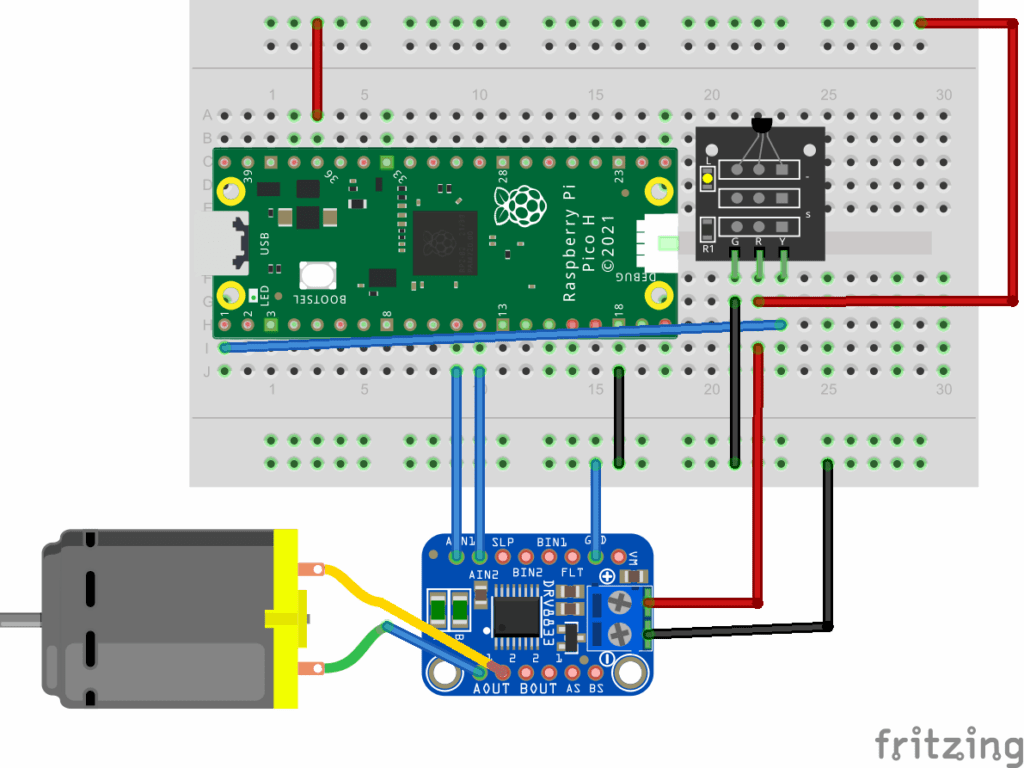
The 18B20 sensor 3 pins and needs a resistor to be connected before it can be used. The version I have comes on a breakout board which already has this resistor and a built in LED which flashes when you read the sensor value.
Pinnumber
Name
Description
1
G/GND
Ground (0v)
2
R/VCC
Power supply (3.3v or 5v)
3
Y/DQ
Data
You can also get waterproof versions of this sensor. It’s worth noting that each sensor has a unique ID number so you can connect as many as you like to the same pin on the Pico and read the values separately.
The circuit
The DRV8833 motor driver breakout shown is integrated into the pico explorer board but you can get one separately here.
The motor is a Geekservo Lego Compatible motor connected to a Lego scene with an ice skating elf (but any other scene will do!)
The code
The buttons next to the pico explorer board can be used to set the motor speed in manual mode, or it will automatically switch on the motor if the temperature is cool enough to ice skate.
"""
Adventures in Electronics
* Firmware:
- CircuitPython v9.2.1
* Hardware:
- Raspberry pi pico in pico explorer board
- 18B20 temperature sensor
Pin1 (GND/G => GND)
Pin2 (VDD/R => 3v3)
Pin3 (DQ/Y => GP0)
* Description:
Reads temperature ('C) every second and displays on screen
Spins motor 1 if temperature is less than 22'C.
* Buttons:
A: auto mode (spins if temperature is less than 22'C)
B: manual mode (use X and Y to change speed)
X: increase speed by .1 in manual mode
Y: decrease speed by .1 in manual mode
"""
import picoexplorer
import board
import time
import adafruit_ds18x20
from adafruit_onewire.bus import OneWireBus
ow_bus = OneWireBus(board.GP0)
mode = "auto"
speed = 0.0# scan for all sensors (you can have lots connected to the same pin)
devices = ow_bus.scan()
if len(devices) == 0:
print("No devices found")
else:
id = "".join([hex(i)[2:] for i in devices[0].rom])
print("ROM = {} \tFamily = 0x{:02x}".format(id, devices[0].family_code))
picoexplorer.init()
# only connect to the first device found
ds18b20 = adafruit_ds18x20.DS18X20(ow_bus, devices[0])
whileTrue:
# read temperature
temperature_c = ds18b20.temperature
t = 'Temp: {0:0.3f} °C'.format(temperature_c)
print(t)
picoexplorer.set_line(3, t)
# switch on the motor if temperature is below 22'if mode == "auto":
if temperature_c < 22:
speed = .3else:
speed = 0if mode == "manual":
if not picoexplorer.buttons["X"].value:
speed += 0.1if not picoexplorer.buttons["Y"].value:
speed -= 0.1if not picoexplorer.buttons["A"].value:
mode = "auto"if not picoexplorer.buttons["B"].value:
mode = "manual"if speed > 1:
speed = 1if speed < -1:
speed = -1
picoexplorer.motors[0].throttle = speed
picoexplorer.set_line(4, "{} speed: {:.1}".format(mode, speed))
# No faster than 10Hz
time.sleep(.1)
Code language:PHP(php)
Link to code (including the picoexplorer module and other required libraries) here.
There’s also some micropython code just to read from the sensor here.
The pico explorer screen says “Get ready” for a random amount of time. As soon as the screen goes red, you have to press the button as soon as you can. If you’re fast enough, the minifig lives to play another round. If you’re too slow (or too fast and try to cheat) the servo opens the trapdoor and the minifigure slides down to meet a sticky end.
About the sensor
The push button breakout has three pins.
Pinnumber
Name
Description
1
S
Signal (connect to GPIO port)
2
VCC
Power supply (3.3v or 5v)*
3
–
Ground (0v)*
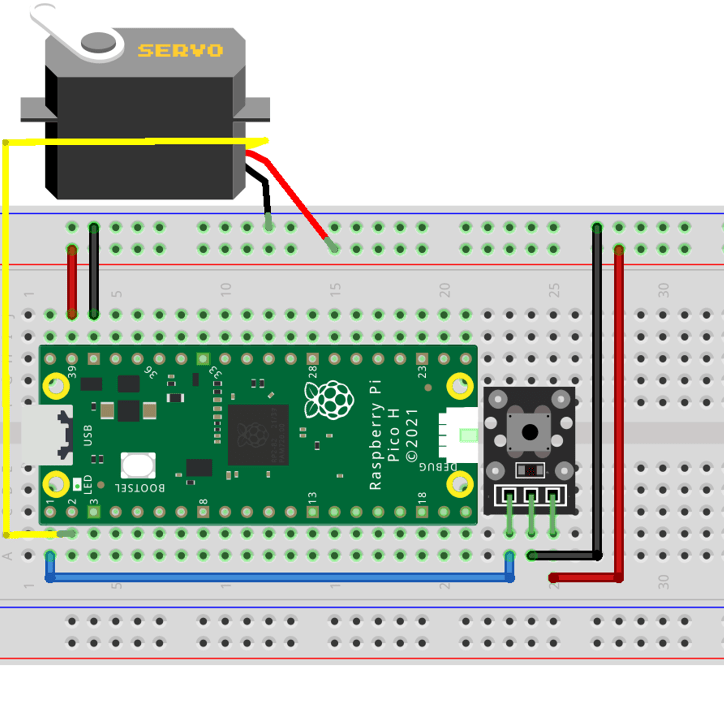
* Whilst the breakout board labels the + and – pins as shown in the table above, I had more success when swapping the power and ground round as shown in the schematic below and the video above. When the push button is pressed, a connection is made between pins 1 and 3. The middle pin is connected to a resistor that can be a pull up or pull down resistor depending on whether you connect up the switch as shown in the table above or in the schematic below.
The circuit
The servo is connected to a Lego trap door as shown below:
The servo we should have used is a GeekServo Lego Compatible servo but we don’t have one of those yet. That would allow us to control the exact angle of the trap door. Instead, we used a continuous rotation servo which runs more like a motor, continuously rotating as the name would suggest. Using a servo rather than a motor means we don’t have to use a h bridge motor driver to protect the pico as you would for a motor but the continuous rotation means that the only way of opening or closing the trap door is to make the servo on for a set amount of time and hope that it rotates fully. The Lego model restricts the trapdoor from opening or closing too much so the timings set in code should be plenty of time to allow for this.
The code
When the program starts it says “Get ready” for a random amount of time (between 1 and 3 seconds) then the edge of the screen goes red to indicate that you need to press the button. If you press the button too soon (before the screen goes red) or too late (or not at all) then the servo opens the trapdoor and the Lego minifig falls to its watery doom.
"""
Adventures in Electronics
* Firmware:
- CircuitPython v9.2.1
* Hardware:
- Raspberry pi pico in pico explorer board
- Servo
Pin1 (Orange => GP1)
Pin2 (Red => 3v3)
Pin3 (Brown => GND)
- Push switch (note inverse polarity)
Pin1 (GND => 3v3)
Pin2 (VCC => GND)
Pin3 (S => GP0)
* Description:
Reaction timer trap door of doom:
Pico explorer board will display "Get ready" for a random amount of time
As soon as the screen goes red, you have to press the button. If you're too slow the servo will
open a Lego trapdoor
"""
import picoexplorer
import time
import random
import board
import pwmio
from digitalio import DigitalInOut, Direction, Pull
from adafruit_motor import servo
TIME_TOO_SLOW = 2
TIME_MAX_WAIT = 5# Set up button
btn = DigitalInOut(board.GP0)
btn.direction = Direction.INPUT
btn.pull = Pull.UP
# Set up servo
pwm = pwmio.PWMOut(board.GP1, duty_cycle=2 ** 15, frequency=50)
trapdoor_servo = servo.Servo(pwm)
# Open Lego servo trapdoor of doom
def open_trapdoor():
trapdoor_servo.angle = 0
time.sleep(1)
trapdoor_servo.angle = 90# Make sure trapdoor is closed
def close_trapdoor():
trapdoor_servo.angle = 180
time.sleep(2)
trapdoor_servo.angle = 90
picoexplorer.init()
close_trapdoor()
whileTrue:
picoexplorer.set_line(3, "Get ready")
picoexplorer.set_line(4, "")
# random delay before pressing button
delay = random.randint(10,30) / 10
start_time = time.monotonic()
duration = 0# make sure button isn't pressed too soonwhile duration < delay:
time.sleep(0.05)
duration = time.monotonic() - start_time
if btn.value:
picoexplorer.set_line(4, "Cheat!")
open_trapdoor()
# Go!
picoexplorer.set_color(picoexplorer.COLORS_BACKGROUND_OUTER, 0xFF0000)
picoexplorer.set_line(3, "Press button!")
# Time how long it takes to press button
start_time = time.monotonic()
while not btn.value:
time.sleep(0.05)
duration = time.monotonic() - start_time
# don't wait for too longif duration > TIME_MAX_WAIT:
break# display time
picoexplorer.set_color(picoexplorer.COLORS_BACKGROUND_OUTER, 0x000000)
picoexplorer.set_line(3, "Time: {:.2f}s".format(duration))
# open the trapdoor if they take too longif duration > TIME_TOO_SLOW:
picoexplorer.set_line(4, "Too slow!")
open_trapdoor()
close_trapdoor()
# if button is pressed soon enough, keep the trapdoor closed for another tryelse:
picoexplorer.set_line(4, "Well done!")
time.sleep(2)
Code language:PHP(php)
Link to code (including the picoexplorer module and other required libraries) here.
There’s also some micropython code just to read from the sensor here.
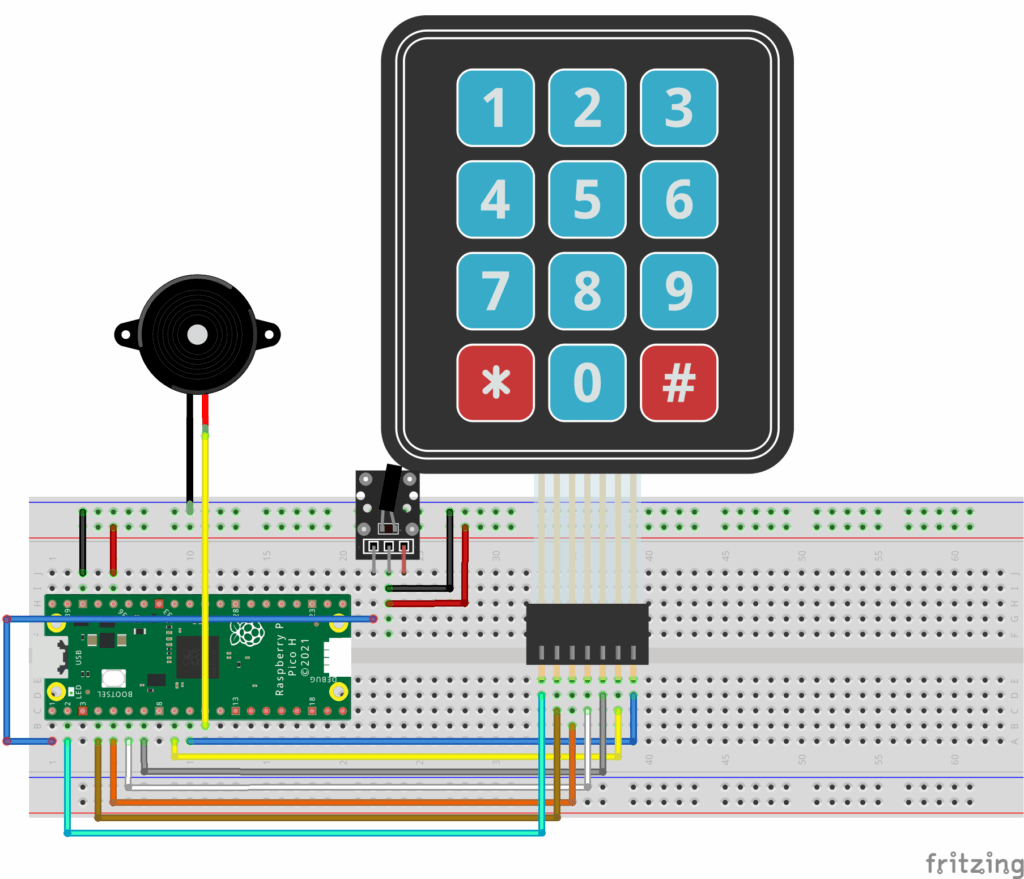
The keypad had an unusual pinout and may well be different to one that you have. I got mine from AliExpress for around £1:
Pin number
Name
Description
1
C2
Keypad column 2 (keys 2, 5, 8 and 0)
2
R1
Keypad row 1 (keys 1, 2 and 3)
3
C1
Keypad column 1 (keys 1, 4, 7 and *)
4
R4
Keypad row 4 (keys *, 0 and #)
5
R3
Keypad row 3 (keys 7, 8 and 9)
6
C3
Keypad column 3 (keys 3, 6, 9 and #)
7
R2
Keypad row 2 (keys 4, 5 and 6)
The circuit
Tilt sensor and keypad car alarm with a raspberry pi pico
Note that on the pico explorer board the piezo speaker was connected to GP8 which is also used by the motor controller (labelled Motor 1+ on the pico explorer board). This is because there weren’t enough unused general purpose input and output pins available.
The servo we should have used is a GeekServo Lego Compatible servo but we don’t have one of those yet. That would allow us to control the exact angle of the trap door. Instead, we used a continuous rotation servo which runs more like a motor, continuously rotating as the name would suggest. Using a servo rather than a motor means we don’t have to use a h bridge motor driver to protect the pico as you would for a motor but the continuous rotation means that the only way of opening or closing the trap door is to make the servo on for a set amount of time and hope that it rotates fully. The Lego model restricts the trapdoor from opening or closing too much so the timings set in code should be plenty of time to allow for this.
The code
When the program starts the alarm is active so any vibration detected by the tilt sensor will set off the alarm.
To disable the alarm you can enter the pin (1234) on the keypad. Any other pin (re)enables the alarm.
"""
* Firmware:
- CircuitPython 9.2.1
* Hardware:
- Raspberry Pi Pico v1
- Piezo speaker
GP21 => Speaker
- Keypad
Pin 1 (Col 2) => GP1
Pin 2 (Row 1) => GP2
Pin 3 (Col 1) => GP3
Pin 4 (Row 4) => GP4
Pin 5 (Row 3) => GP5
Pin 6 (Col 3) => GP6
Pin 7 (Row 2) => GP7
- Hit sensor
Pin 1 (Signal) => GP0
Pin 2 (VCC) => Power
Pin 3 (GND) => Ground
* Description:
Asks user to enter a 4 digit pin to disable alarm (correct pin is 1234)
If alarm is enabled it sounds if the tilt sensor detects vibrations
"""
import pwmio
import board
import time
import picoexplorer
import keypad
import digitalio
picoexplorer.init()
picoexplorer.i2c.deinit()
""" Pins for Keypad:
GP1 GP2 GP3 GP4 GP5 GP6 GP7
C2, R1, C1, R4, R3, C3, R2
"""
rows_pins = (board.GP2, board.GP7, board.GP5, board.GP4)
cols_pins = (board.GP3, board.GP1, board.GP6)
keys = keypad.KeyMatrix(row_pins=rows_pins, column_pins=cols_pins)
KEYS = "123456789*0#"# Replace with your own pin
pin_correct = "1234"# Set up tilt switchswitch = digitalio.DigitalInOut(board.GP0)
switch.direction = digitalio.Direction.INPUT
switch.pull = digitalio.Pull.DOWN
# mario tune in musical notes and rests
tune = "E E _ E _ C E _ G"# Create piezo buzzer PWM output.
buzzer = pwmio.PWMOut(board.GP21, variable_frequency=True)
picoexplorer.play_tune(buzzer, tune, duty_cycle=5)
pin = ""
alarm_set = True
previous_switch_value = switch.value
whileTrue:
# check if keypad key is pressed
e = keys.events.get()
if e and e.pressed:
pin += KEYS[e.key_number]
# Assume pin has 4 digits - check if correctif len(pin) == 4:
if pin == pin_correct:
alarm_set = False
picoexplorer.play_tune(buzzer, "C G")
else:
alarm_set = True
picoexplorer.play_tune(buzzer, "G C")
pin = ""else:
picoexplorer.play_tune(buzzer, "C")
previous_switch_value = switch.value
# Update alarm statusif alarm_set:
picoexplorer.set_line(3, "Alarm active")
ifswitch.value != previous_switch_value:
picoexplorer.set_line(3, "ALARM!")
picoexplorer.play_tune(buzzer, "B " * 20)
previous_switch_value = switch.value
else:
picoexplorer.set_line(3, "Alarm disabled")
previous_switch_value = switch.value
pin_masked = "*" * len(pin)
picoexplorer.set_line(4, "Pin: [{:4}]".format(pin_masked))
time.sleep(0.1)Code language:PHP(php)
Link to code (including the picoexplorer module and other required libraries) here.